
Converting STEP Files to GLB and Then to USDZ – Professional Workflow for AR-Ready 3D Models
In today’s competitive market, delivering high-quality 3D models optimized for web, real-time visualization, and Apple Augmented Reality is essential. This professional workflow allows you to seamlessly convert your engineering STEP files into GLB format and then into high-performance USDZ files — ready for stunning AR experiences on iOS, iPadOS, and visionOS.

Learn how to professionally convert STEP files to GLB and then to USDZ format using FreeCAD and Apple Reality Converter. This reliable workflow is perfect for creating high-quality 3D models for Apple Vision Pro, AR Quick Look, interactive product visualization, and modern digital experiences.
Step-by-Step Guide: Convert STEP to GLB and USDZ
Part 1: Convert STEP to GLB Using FreeCAD
Step 1: Open the STEP file
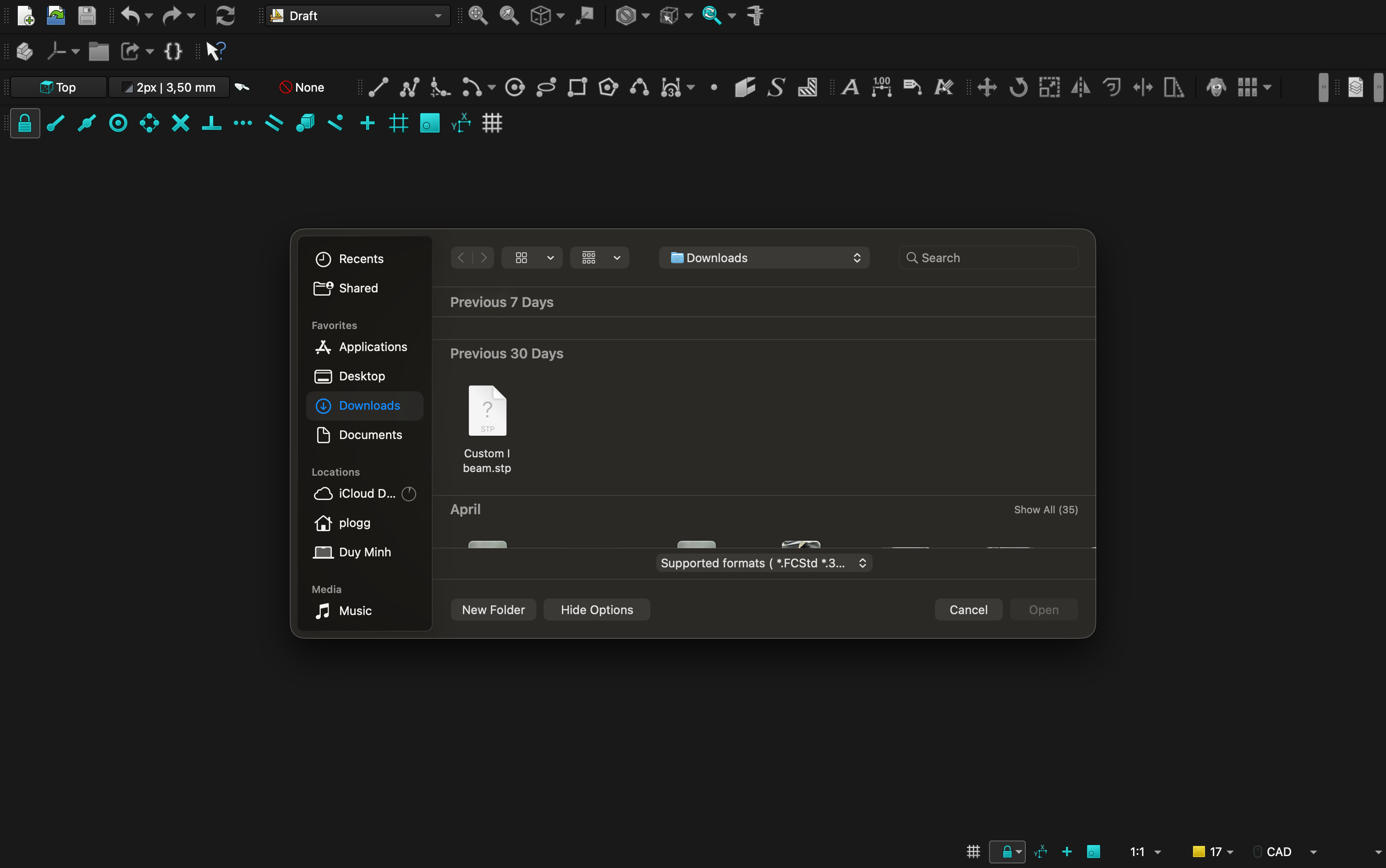
Launch FreeCAD, go to File → Open, select your .stp or .step file in the browser window and click Open to load your CAD model.
Step 2: Select objects to export
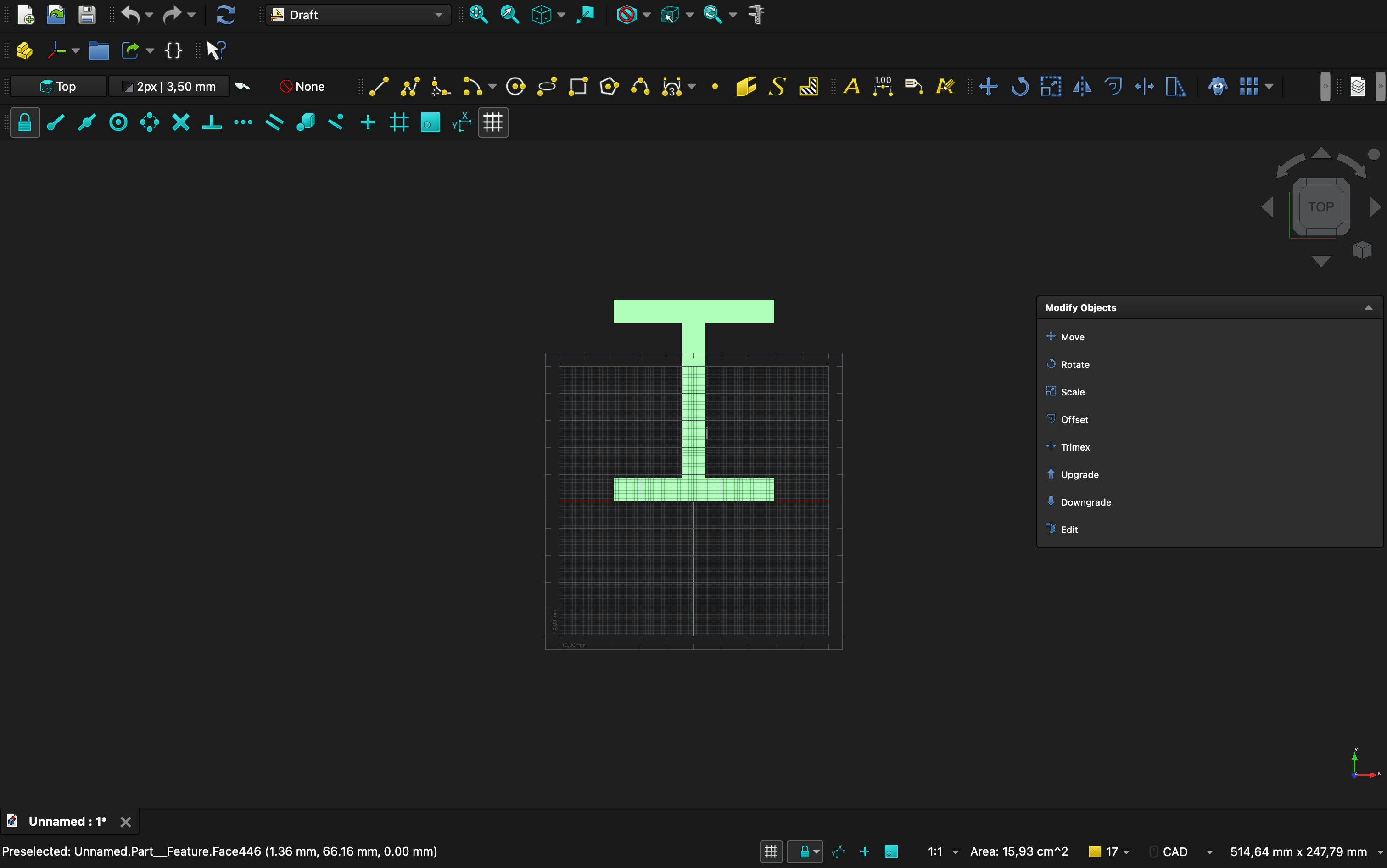
In the model tree or 3D viewport, select the objects or the complete assembly you want to export.
Step 3: Export as GLTF/GLB
Go to File → Export, choose glTF (*.gltf) as the format, name your file and click Save.
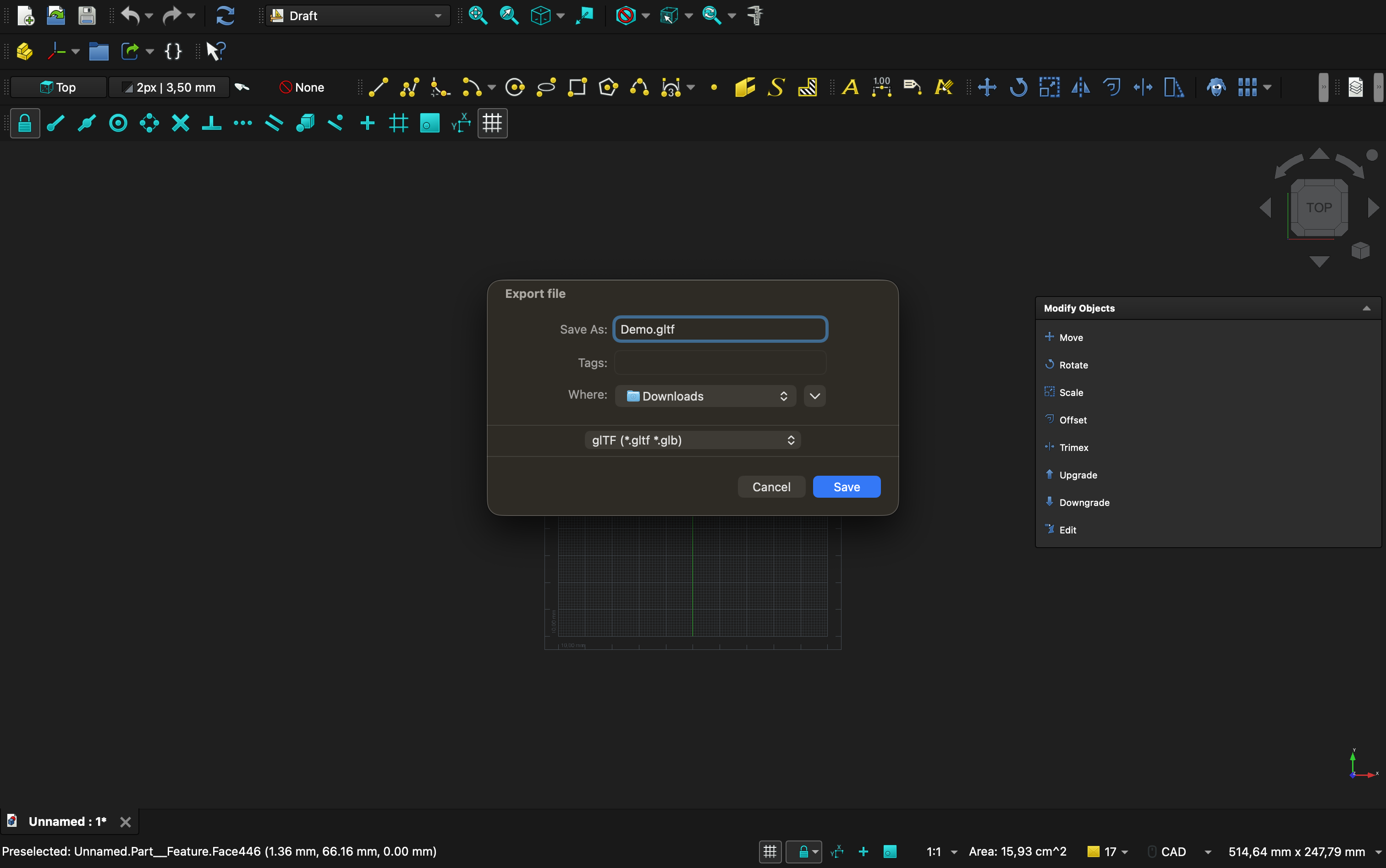
Note: FreeCAD will generate a .gltf file along with a .bin file. You can use them together or combine them into a single .glb file.
Part 2: Convert GLB to USDZ Using Reality Converter
Step 1: Launch Reality Converter
On your Mac, press Command + Space, type “Reality Converter” and launch the application.
If you don’t have it installed, download it here:
Reality Converter Beta
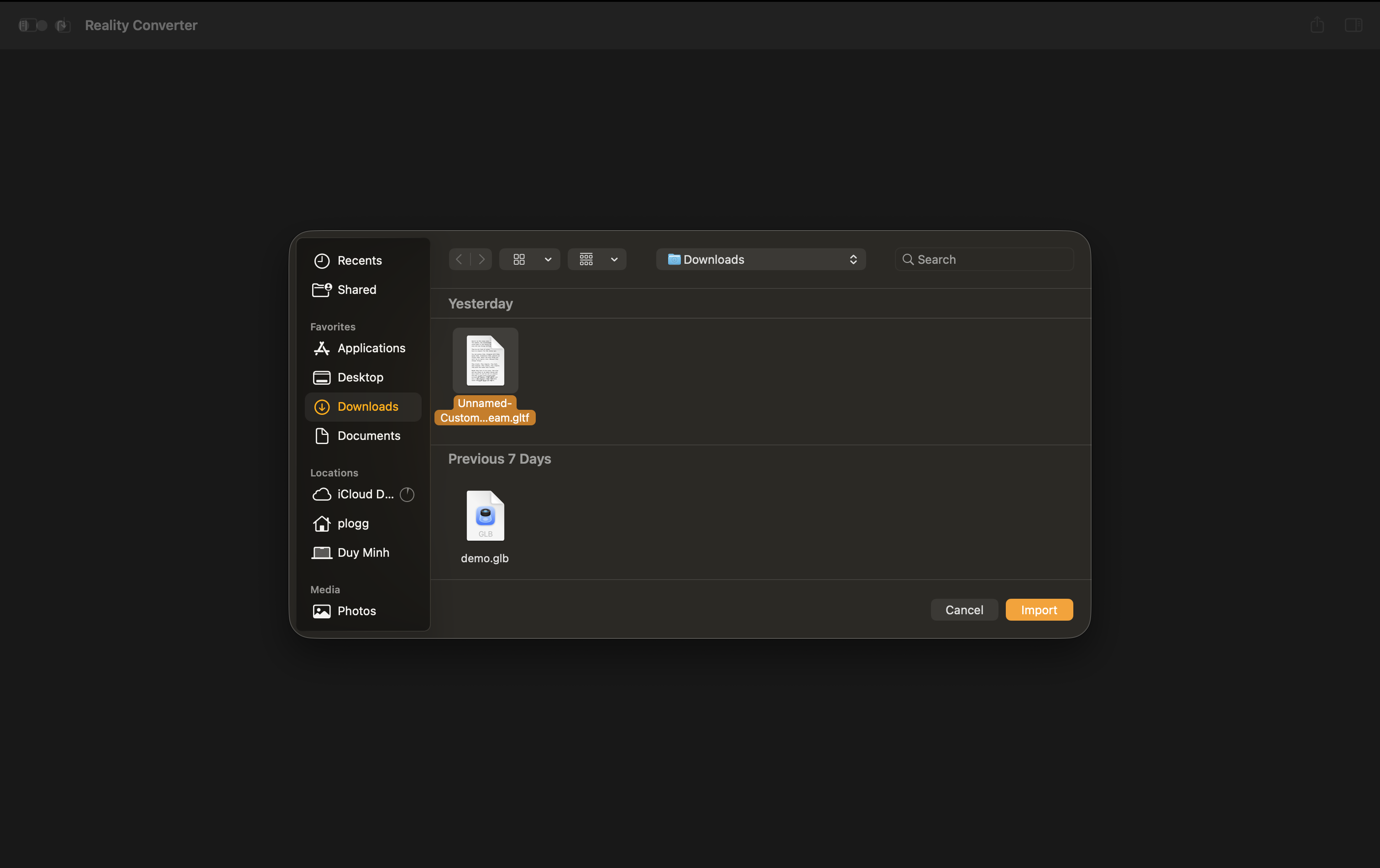
Go to File → Import and select the .glb or .gltf file you exported from FreeCAD.
Step 2: Review and Export to USDZ
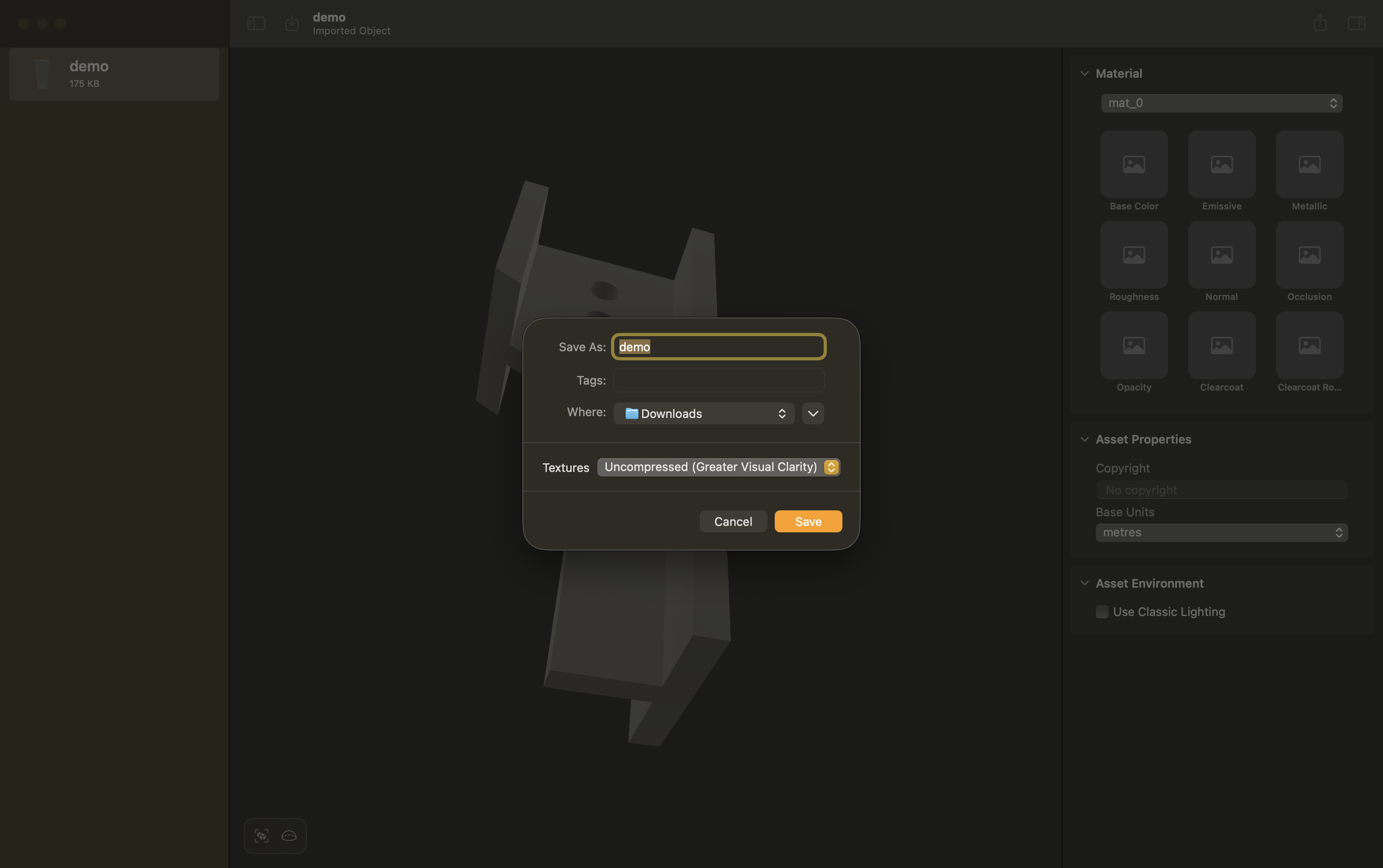
Carefully preview the 3D model to check geometry, scale, materials, and textures. When ready, go to File → Export, select USDZ format and save the file.
The final .usdz file is now fully optimized and ready for Apple Vision Pro, AR Quick Look, and professional AR/VR applications.
Why This Workflow Works
- Free, reliable, and uses trusted industry tools
- Excellent preservation of model details and accuracy
- High compatibility with Apple AR ecosystem
- Professional results suitable for client delivery and production use