
How to Convert STEP Files to USDZ for Apple Vision Pro – Complete Technical Guide
Detailed instructions on converting STEP CAD files to USDZ for Apple Vision Pro using Inservio. Learn the STEP → GLB → USDZ process using Cascadio + OCCT and Three.js USDZExporter.

How to Convert STEP Files to USDZ for Apple Vision Pro – Complete Technical Guide
Learn how Inservio converts complex CAD STEP files into optimized USDZ assets ready for Apple Vision Pro using modern conversion technologies.
Inservio automates the entire pipeline: STEP → GLB → USDZ, helping engineering teams quickly deploy high-fidelity 3D models for spatial computing, AR experiences, and Apple Quick Look.
Why Convert STEP to USDZ?
STEP files (.step / .stp) contain precise NURBS geometry and manufacturing data, making them ideal for CAD/CAM. However, they are too heavy and complex for real-time rendering on Apple Vision Pro and web 3D platforms. USDZ is Apple’s optimized native format for visionOS and Quick Look.
Technical Architecture Behind Inservio
Inservio uses a robust, multi-stage conversion pipeline:
1. STEP → GLB Conversion
- Core Technology: Cascadio (Python library v0.0.17)
- CAD Kernel: OCCT (Open CASCADE Technology) – industry-standard open-source CAD kernel
- Automatically converts NURBS surfaces into optimized triangle meshes
- Preserves model scale, hierarchy, and engineering accuracy
- Supports large and complex CAD assemblies
2. GLB → USDZ Conversion
- Powered by Three.js USDZExporter
- Material normalization, texture baking, and USDZ-specific optimizations
- Post-processing to ensure correct object naming and Quick Look compatibility
All converted files are securely stored on Google Cloud Storage and served through our Builder interface.
Step-by-Step User Guide
Step 1: Create a New Project
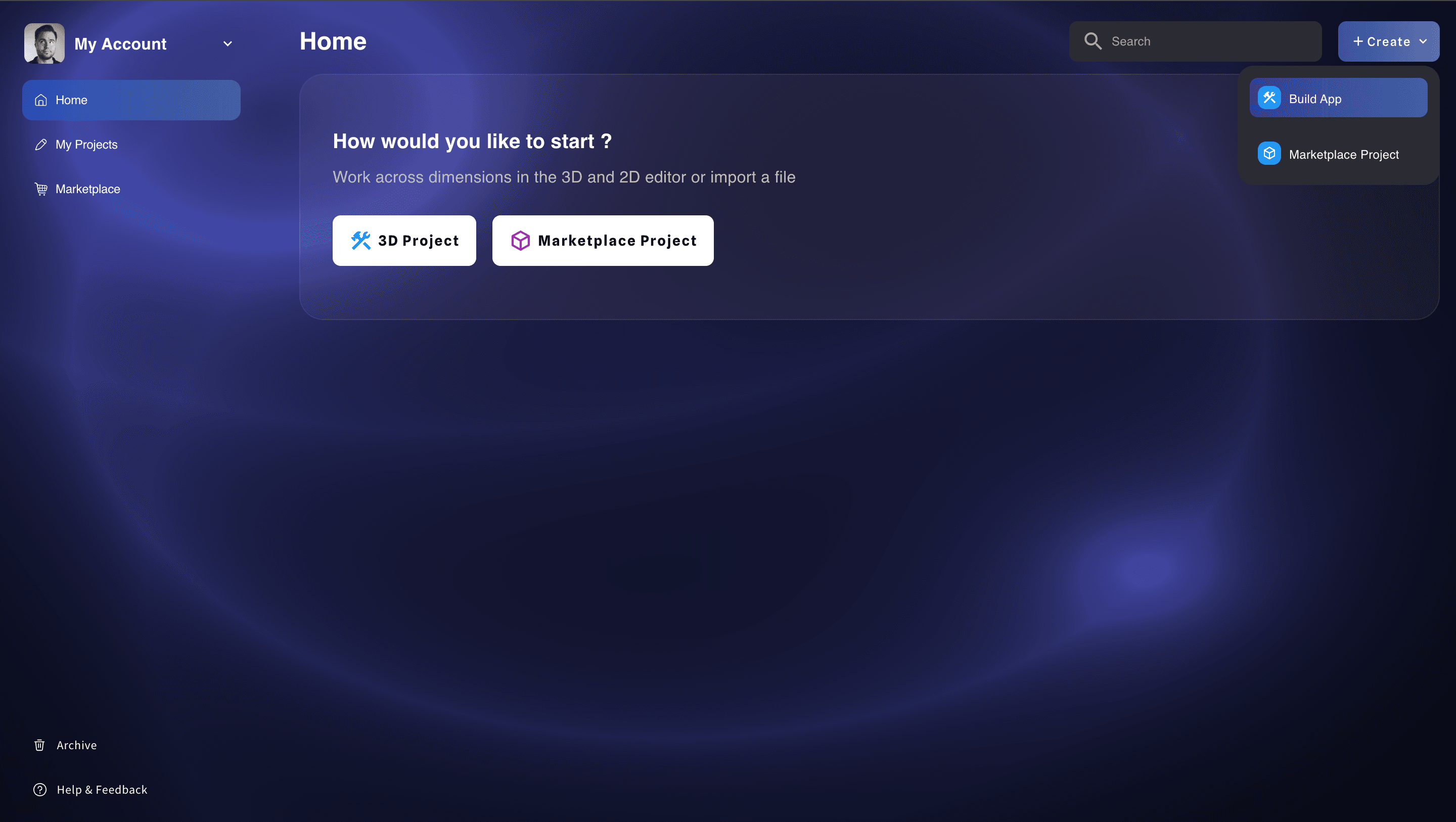
Go to dashboard → Click + Create → Choose Build App.
Step 2: Upload & Convert STEP File
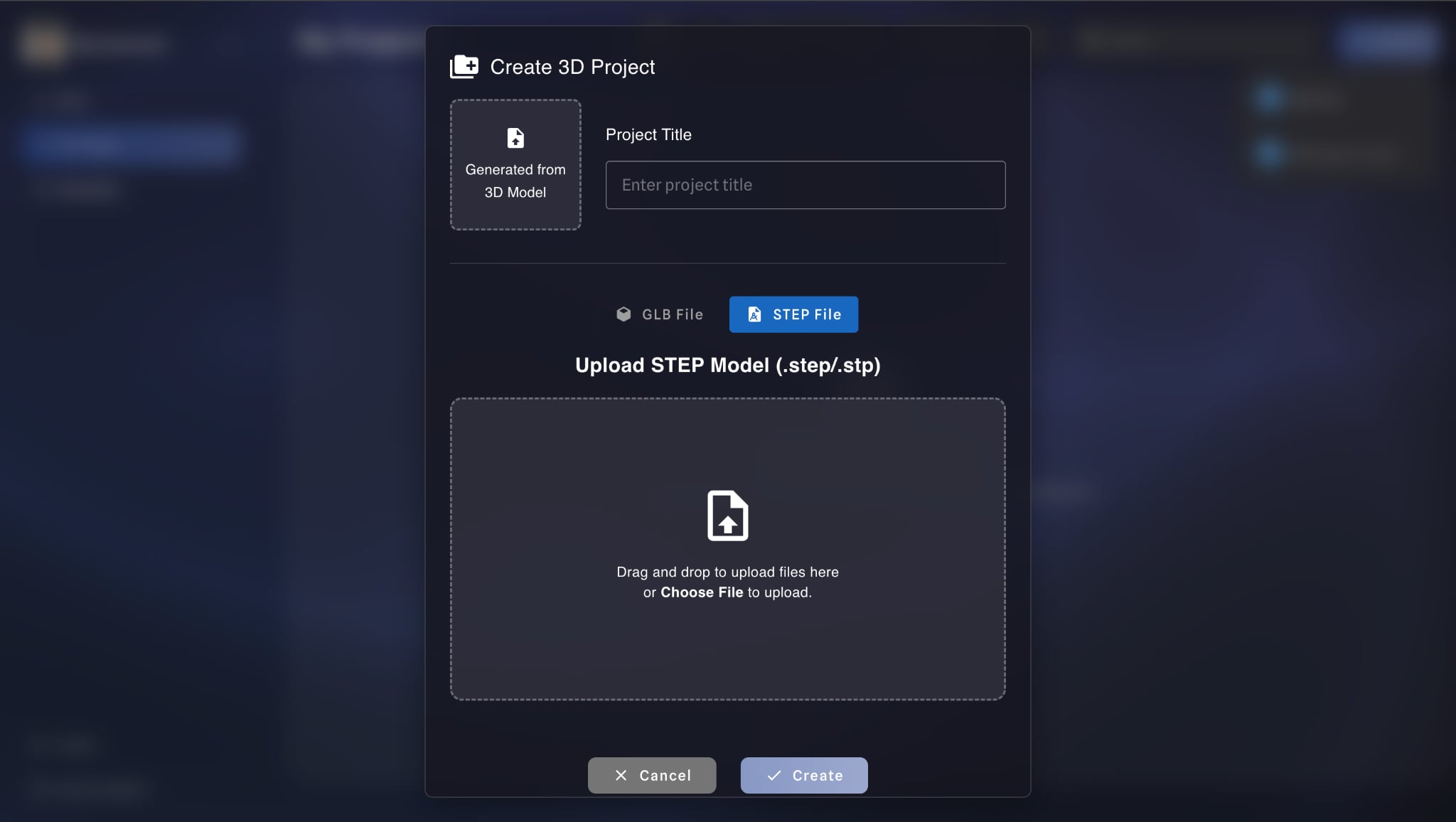
Upload your .step or .stp file. The system automatically triggers the conversion pipeline (Cascadio + OCCT) to generate a GLB file.
Step 3: Preview & Create Project
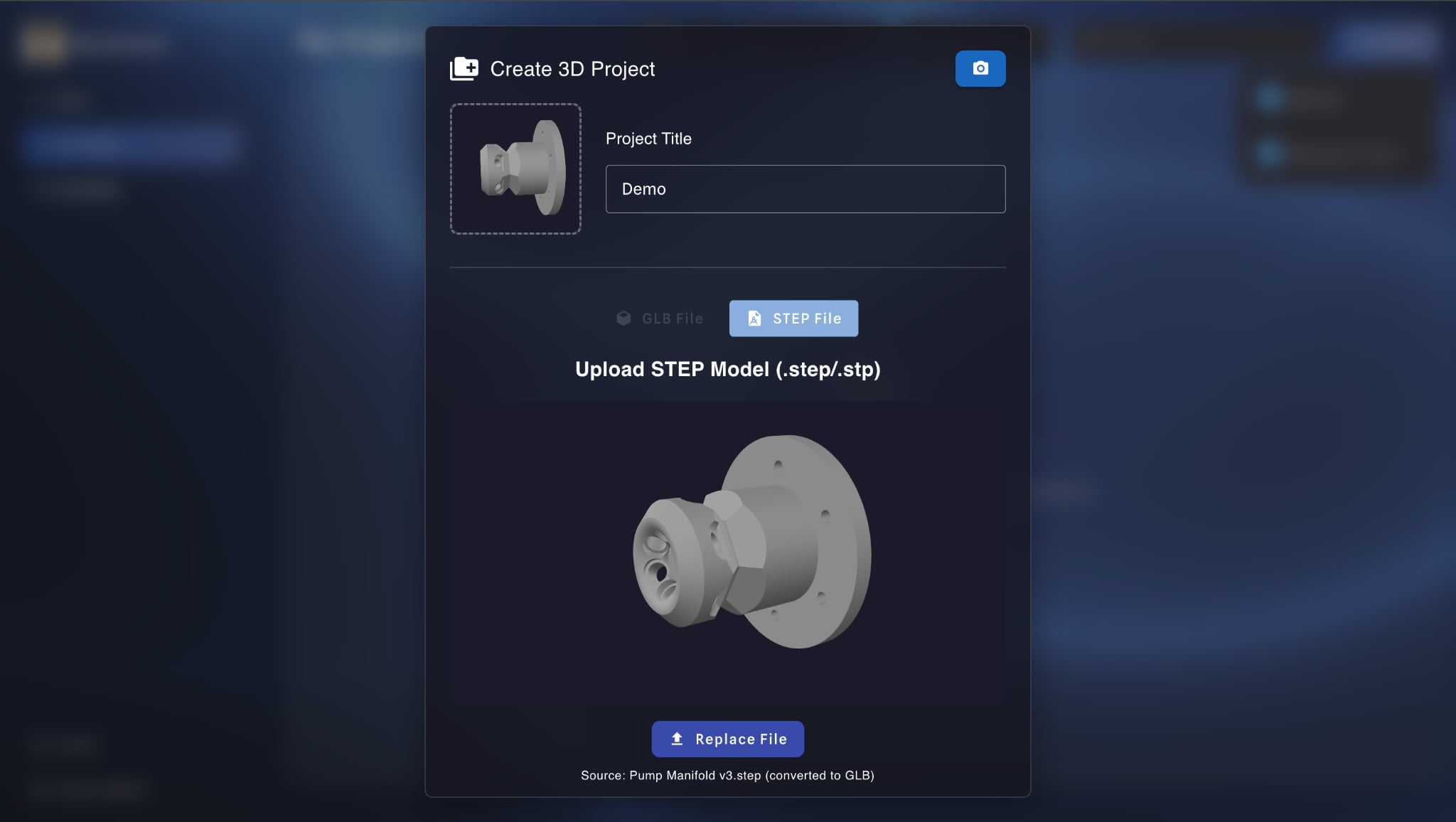
Step 4: Open Builder
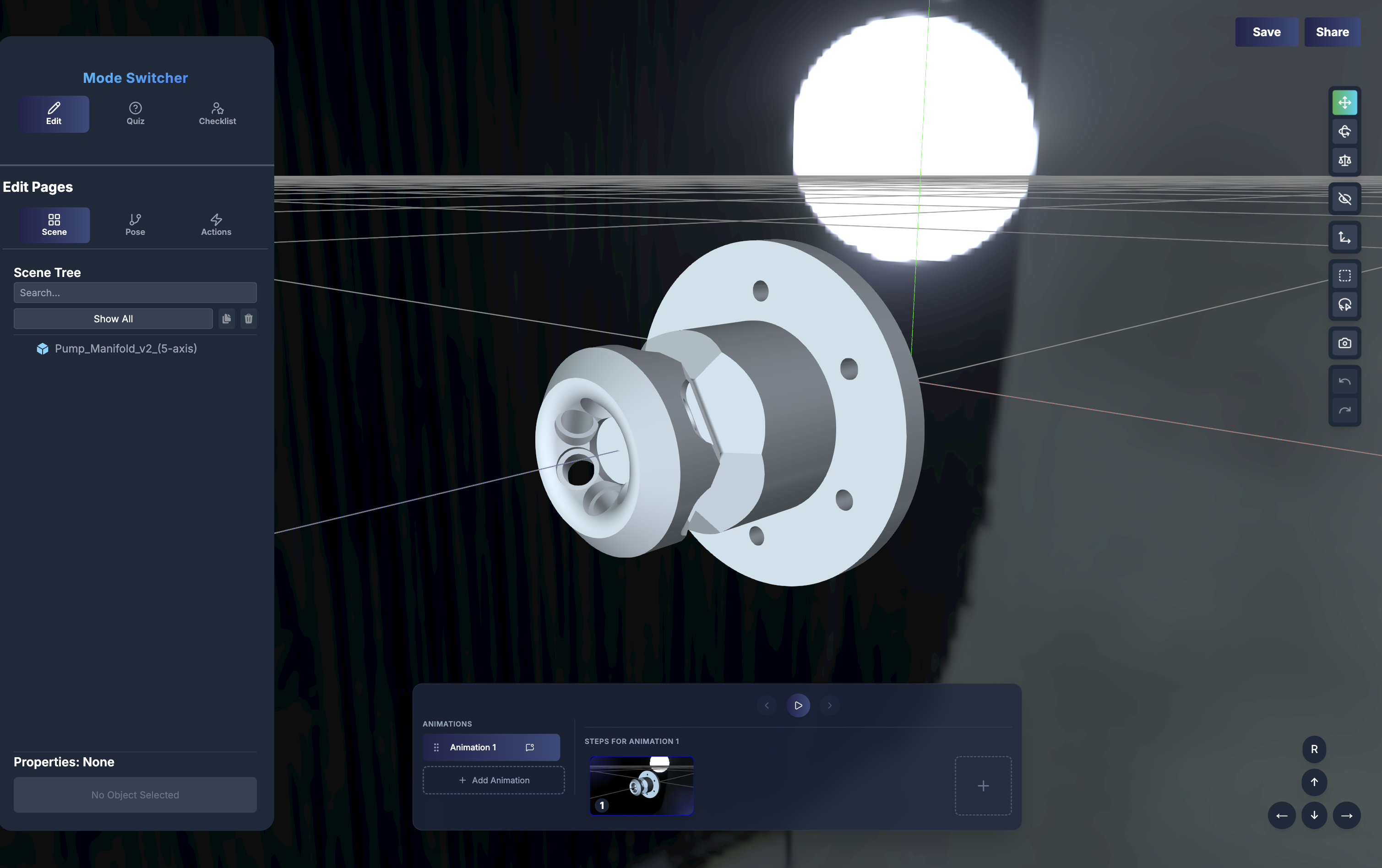
After project creation, you will be automatically redirected to the Builder interface.
Step 5: Export USDZ & GLB

- Click Share button (top right)
- Go to Actions tab
- Choose Export USDZ or Export GLB
- Files download instantly
Once downloaded, your USDZ file is fully optimized and ready to be experienced in spatial computing or AR environments:
Demo: Seamlessly viewing the exported USDZ asset in an AR environment.
Start Converting Your STEP Files Today
Try Inservio now at: https://portal.inservio.app/login
Preview your 3D model in the viewport, configure your project settings, and click Create Project to proceed.
FAQ
Does Inservio support large CAD assemblies?
Yes. The system is optimized with OCCT and Cascadio to handle complex multi-body assemblies efficiently.
Is the conversion accurate?
Very high accuracy. OCCT preserves engineering precision while optimizing topology for real-time rendering.
Can I use the resulting USDZ on Apple Vision Pro?
Yes. Files are exported with Quick Look compatibility and proper material/texture handling.