
Setting Up a Demo with RAG Engine on Gemini Enterprise Agent Platform
Internal documentation for setting up a basic RAG Engine proof of concept using Vertex AI and Gemini Enterprise Agent Platform.
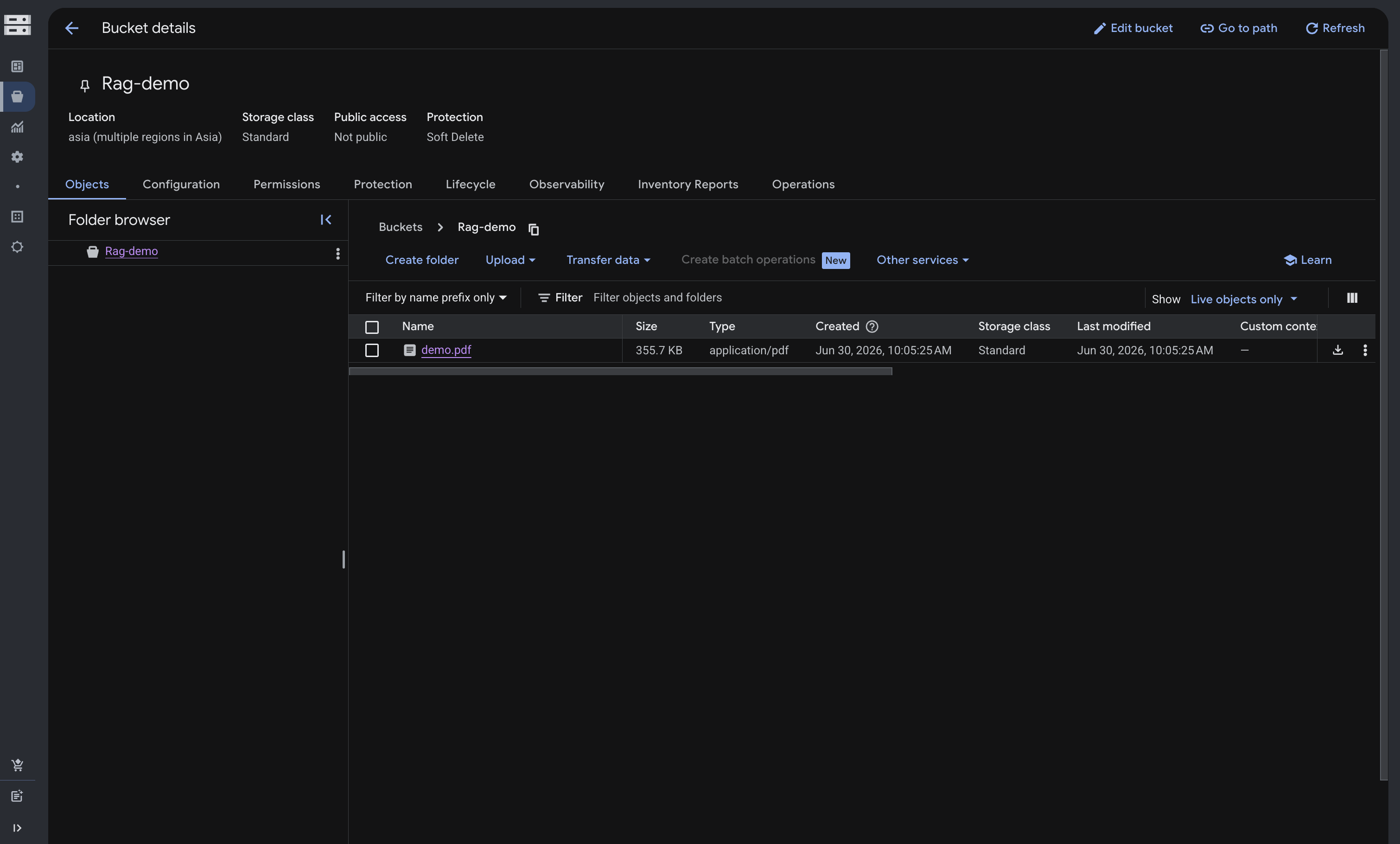
The demo uses a sample PDF document (demo.pdf) stored in the Rag-demo bucket. The goal is to validate document ingestion, corpus creation, and retrieval before integrating the solution into the main NestJS backend.

Setting Up a Demo with RAG Engine on Gemini Enterprise Agent Platform
This document describes the steps required to set up a simple RAG demo using Vertex AI and Gemini Enterprise Agent Platform. The goal is to validate the end-to-end document ingestion and retrieval workflow before integrating it into backend services.
For a more detailed overview of RAG Engine concepts, supported architectures, and implementation options, refer to the official Google documentation: RAG Engine on Gemini Enterprise Agent Platform Overview .
Prerequisites
- Google Cloud SDK installed
- Access to a Google Cloud project
- Python 3.10 or later
- Vertex AI permissions enabled
1. Authenticate with Google Cloud
Login using Application Default Credentials:
gcloud auth application-default loginVerify the active project:
gcloud config get-value projectThe command should return your target project ID.
2. Enable Required Services
gcloud services enable aiplatform.googleapis.com
gcloud services enable discoveryengine.googleapis.com
Verify that Vertex AI is enabled:
gcloud services list | grep aiplatform3. Create a Storage Bucket (UI)
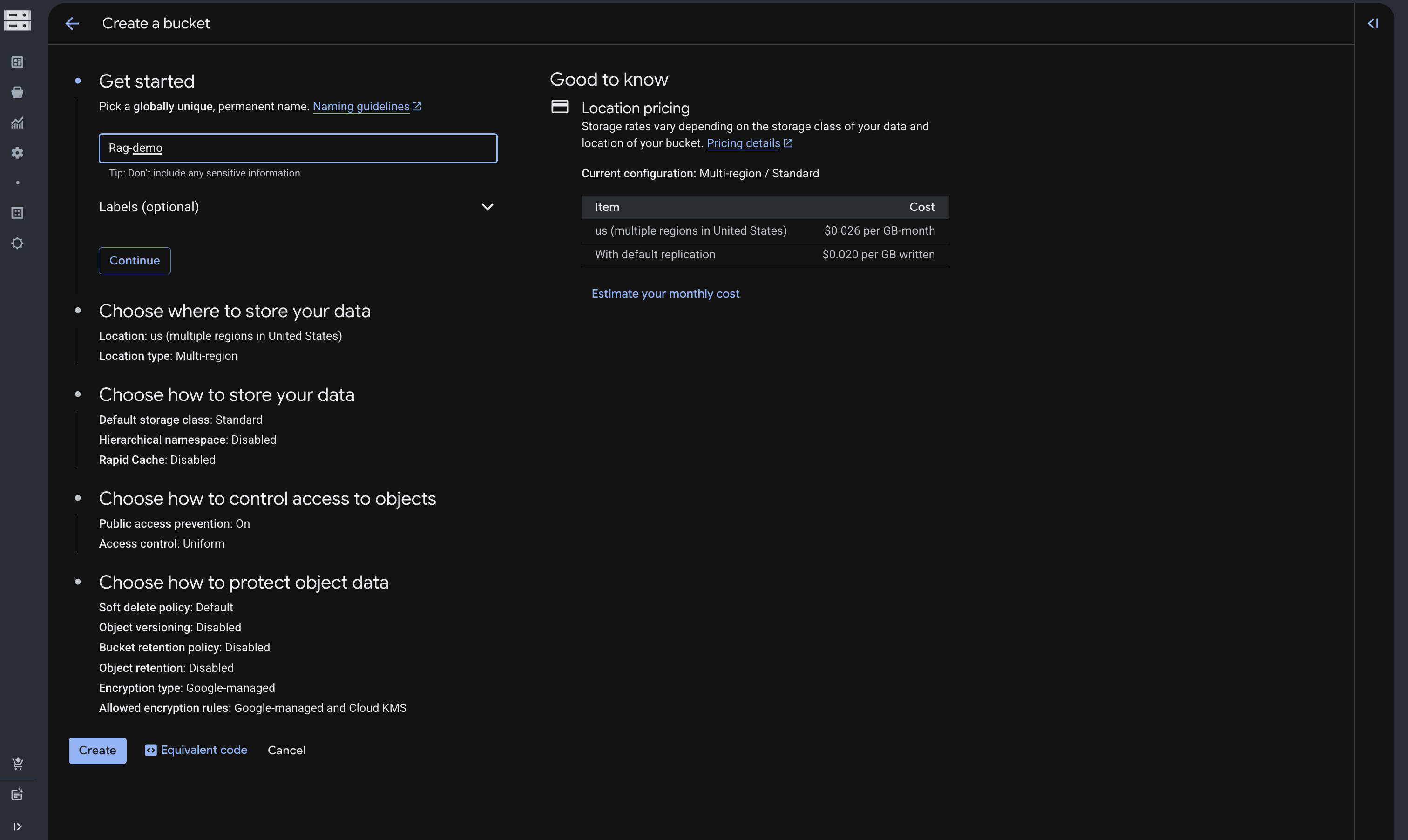
Create a bucket named:
Rag-demoSelect an appropriate region for your environment.
4. Upload Source Documents (UI)
Open the Rag-demo bucket and upload the documents that will be used for retrieval. Supported formats include PDF, TXT, JSON, and other text-based files.
Optional verification:
gcloud storage ls gs://Rag-demo/5. Create a Python Environment
python3 -m venv .venv
source .venv/bin/activate
Install dependencies:
pip install google-cloud-aiplatform6. Open Gemini Enterprise Agent Platform (UI)
Open Gemini Enterprise Agent Platform
If prompted, enable the required APIs before proceeding.

7. Create a RAG Corpus
Create create_rag.py:
import vertexai
from vertexai.preview import rag
from vertexai.preview.rag.utils.resources import (
    RagVectorDbConfig,
    RagManagedDb,
)

vertexai.init(
    project="YOUR_PROJECT_ID",
    location="YOUR_REGION",
)

corpus = rag.create_corpus(
    display_name="demo-rag",
    backend_config=RagVectorDbConfig(
        vector_db=RagManagedDb()
    ),
)

print(corpus.name)
Run:
python3 create_rag.pySave the generated corpus ID. It will be required in the next steps.

8. Import Documents into the Corpus
Create import_pdf.py:
import vertexai
from vertexai.preview import rag

vertexai.init(
    project="YOUR_PROJECT_ID",
    location="YOUR_REGION"
)

response = rag.import_files(
    corpus_name="YOUR_CORPUS_ID",
    paths=[
        "gs://Rag-demo/YOUR_DOCUMENT.pdf"
    ]
)

print(response)
Run:
python3 import_pdf.pyExpected output:
imported_rag_files_count: 1
9. Run a Test Query
Create query.py:
import vertexai
from vertexai.preview import rag

vertexai.init(
    project="YOUR_PROJECT_ID",
    location="YOUR_REGION"
)

response = rag.retrieval_query(
    rag_resources=[
        rag.RagResource(
            rag_corpus="YOUR_CORPUS_ID"
        )
    ],
    text="Summarize this document"
)

print(response)

Notes
- JSON and plain text documents generally provide better retrieval quality than large spreadsheets or multi-column PDFs.
- If your source data is stored in Excel files, converting the data into structured JSON before importing into RAG is strongly recommended.
- Recommended workflow:
Excel (.xlsx)
↓
Transform to JSON
↓
Generate clean text documents
↓
Import into RAG Engine
Structured JSON enables better chunking, more accurate embeddings, and significantly improves retrieval quality compared to importing spreadsheets directly.
Next Steps
- Integrate retrieval logic into backend services.
- Create a dedicated
/rag/askendpoint. - Connect frontend applications to the RAG service.
- Introduce preprocessing pipelines for Excel-to-JSON conversion.